
Line items & costs
A purchase order’s body is a table of line items — one row per variant. This page covers the columns you can put on it, how editing works, line-level metafields (both snapshot and write-back), constraint badges, and currency.
On this page
Section titled “On this page”- Views and layouts
- Fulfillment mode per line
- Per-line columns
- Received column
- Sorting by SKU and barcode
- Editing the Shopify SKU and barcode
- Editing inline (Bulk Edit)
- Applying a cost change to other variants
- Line discounts
- Supplier price tiers
- Adding lines
- Moving items to another PO
- Snapshot metafields (Shopify → PO)
- Write-back metafields (PO → Shopify)
- Constraint badges
- Cost calculation
- Currency
- See also
Views and layouts
Section titled “Views and layouts”The tabs above the line-item table are column views — you pick which columns each one shows, and you can save your own. Three are built in:
- Standard — the operational columns (quantities, cost, landed cost, constraints). This is the view you edit from.
- Inventory — current Available / On Hand / Incoming per line, at this PO’s location.
- Sales — recent sales velocity, sell-through rate, capital tied up. Useful for sanity-checking what you’re about to order.
After those come any views you’ve saved, and then two fixed layouts behind a divider:
- Schedules — when a line has more than one planned delivery, whether that came from splitting it yourself or from a supply plan behind the scenes, each delivery shows here with its own quantity, requested and expected dates, lead time, and fulfillment mode. See Delivery schedules for how to split a line and what it changes.
- Receipts — the receipt log for each line. One row per receipt, with the destination, fulfillment mode, and Shopify sync status.
Editing happens on a view, not on Schedules or Receipts — those two are read-only context. For how to add columns, reorder them and save your own view, see Line-item column views.
Fulfillment mode per line
Section titled “Fulfillment mode per line”Each line carries a fulfillment mode that determines where its receipt lands:
| Mode | UI badge | What receipt does |
|---|---|---|
| Deliver to warehouse | Warehouse (green) | Standard receipt — records stock for the PO’s destination warehouse. Shopify on-hand updates through Quick Complete, Auto-sync, or manual Sync to Shopify when the destination is Shopify-backed. |
| Hold at supplier | Supplier Held (amber) | Receipt creates buyer-owned supplier-held stock; does not push to Shopify on-hand. Release later via a Supplier Stock Release. |
| Warehouse consignment | Consignment (indigo) | Stock arrives in your warehouse but ownership stays with the supplier. Shopify on-hand is updated, exactly like a warehouse delivery; the supplier-owned position is tracked separately in Logistified. |
The mode is inherited from the supplier–variant link’s Default fulfillment mode at the time the line is created. You can override it per line in Bulk Edit — except on a PO delivered to another supplier, where every line is Hold at supplier and the control is locked.
When a line has multiple schedules with mixed fulfillment modes, the line shows a primary badge and each schedule shows its own — open the Schedules sub-tab to see the breakdown.
Per-line columns
Section titled “Per-line columns”The columns that appear depend on the active view and whether Bulk Edit is on. The tables below list what the built-in views show; the Columns picker offers many more, grouped as Product, Order, Pricing, Costs & Margin, Inventory and Sales.
Standard view — read mode
Section titled “Standard view — read mode”| Column | What it shows |
|---|---|
| Image | Variant image from Shopify. |
| Product | Product title + variant title. Shopify-backed variants also show an external-link action that opens the variant in Shopify Admin; custom items and Assemblified raw materials do not show that action. |
| SKU | Variant SKU, with sorting options for Shopify SKU or supplier SKU. |
| Barcode | Variant barcode, with sorting options for Shopify barcode or supplier barcode. |
| Quantity | Ordered / confirmed / received progress with a small progress bar. |
| Constraints | ✓ / ⚠ / ✗ badges from the constraint engine. |
| Cost | Per-unit cost in the PO’s currency. |
| Landed Cost | (When Landed Cost is enabled in settings.) Per-unit landed cost including configured surcharges. |
| Actions | Row-level actions menu (edit row, delete row, etc.). |
Bulk Edit’s operational fields
Section titled “Bulk Edit’s operational fields”Bulk Edit works on whichever view you’re currently on — it keeps that view’s own columns and order rather than switching to a fixed layout. Any of the fields below that your view already shows (Quantity and Cost) become editable right where they are; any it doesn’t show are appended after your own columns for the duration of the edit, and disappear again once you exit. On the Standard view, that means only Fulfillment, the four extra quantity breakdowns, and Notes get appended, since Quantity and Cost are already columns there:
| Column | What you can change |
|---|---|
| Fulfillment | Per-line mode — Deliver to warehouse / Hold at supplier / Warehouse consignment. |
| Qty Ordered | What you asked for. |
| Qty Confirmed | What the supplier agreed to ship (also editable via the confirm flow). |
| Qty Received | Actual receipts (also editable via the receive dialog). |
| Qty Rejected | Lines / units the supplier refused at confirmation. |
| Qty Cancelled | Operator-decided cancellations. |
| Cost | Per-unit cost. |
| Notes | Free-text notes per line. |
Inventory view
Section titled “Inventory view”| Column | What it shows |
|---|---|
| Available | Shopify’s available count for this variant. |
| On Hand | Shopify’s on-hand count. |
| Incoming | Units on order at this PO’s location, from open purchase and transfer orders — the same number the Forecast uses for this variant. |
Sales view
Section titled “Sales view”| Column | What it shows |
|---|---|
| Total Sales / Avg Sales | Sales over 30 / 60 / 90 days. |
| Sell-Through Rate | What share of stock is selling. |
| Sales Velocity | Daily sales rate. |
| Capital Tied Up | Estimated cost basis of current stock. |
Received column
Section titled “Received column”The Order group in the Columns picker also offers Received — the line’s total received quantity as its own column, separate from the progress bar in Quantity. Hover the number for a breakdown of every receipt booked against the line, newest first (a reversal shows as a negative quantity), with the total underneath. This is the same information as the Receipts sub-tab, without switching tabs. If your view already shows Received when you turn on Bulk Edit, the Qty Received input reuses that same column instead of adding a second one.
Lines also carry supplier-specific data such as supplier SKU, supplier barcode, and supplier product name. These values come from the supplier-variant link and are visible in the row’s edit panel when you open a line. The Shopify SKU and Barcode shown in the table are also editable from that same panel — see Editing the Shopify SKU and barcode.
Sorting by SKU and barcode
Section titled “Sorting by SKU and barcode”The SKU and Barcode headers are compact display columns, but their sort menus let you choose which identifier drives the row order:
- SKU can sort by Shopify SKU or supplier SKU.
- Barcode can sort by Shopify barcode or supplier barcode.
Use the supplier-specific sort when the document or receiving workflow needs to match the order used by your supplier. The same row order is used by PO exports and supplier-facing documents where line-item sorting is applied.
Editing the Shopify SKU and barcode
Section titled “Editing the Shopify SKU and barcode”Open a line with the row’s Edit action (in the Actions menu) to get its full edit panel — a different surface from Bulk Edit, covering fields Bulk Edit doesn’t. Under Product Information you’ll find editable Shopify SKU and Barcode fields: the actual values on the Shopify variant, separate from the supplier’s own SKU and barcode shown further down the same panel.
Saving the panel always saves your change to the purchase order line first. If you changed the Shopify SKU or barcode, Logistified then asks Update Shopify variant?, listing each changed field with its old and new value and a checkbox next to it:
- Save & Update Shopify — pushes every checked field to the Shopify variant.
- Save without updating Shopify — keeps the change on this line only; the Shopify variant is untouched.
Dismissing the prompt any other way — Escape, clicking outside, or its close control — cancels the whole edit instead of choosing one of those two: nothing on the line is saved. Clearing a field (leaving it blank) is a valid change too, and pushing it removes the SKU or barcode from the Shopify variant.
If Shopify turns down a field — a SKU already used on another variant, for instance — the prompt shows Shopify’s own reason next to that field. Retry failed only appears when trying again could help; a value Shopify has already rejected won’t succeed on a second attempt, so no retry is offered for those.
Editing inline (Bulk Edit)
Section titled “Editing inline (Bulk Edit)”Cells in the line-item table are read-only by default. To enable inline editing, click the Bulk Edit button at the top-right of the line-item card. Once active:
- Your current view’s columns stay put — Bulk Edit doesn’t switch you to a different layout — and a note above the table reminds you that additional order fields appear to the right while editing.
- The quantity cells (Ordered / Confirmed / Received / Rejected / Cancelled) become editable text inputs. Whichever of these your view doesn’t already show are added after your own columns.
- A Notes column is added if your view doesn’t already have one.
- The Cost cell becomes editable.
- If the active view shows the Retail price or Compare-at price columns, those become editable too — and they write straight to Shopify. See Editing retail prices.
- Click Exit Edit (same button) to return to read-only mode. If you have unsaved changes, you’ll be asked to discard them first.
Bulk Edit is mutually exclusive with row selection (the checkboxes for bulk-delete clear when you enter edit mode) — but each row grows its own delete (trash) icon in the Actions column while you’re editing, so you can drop a single line without leaving Bulk Edit first. It opens the same confirm dialog as deleting selected rows from the toolbar, just naming the one line instead of a count. Each cell respects the current PO status — the lifecycle mutability matrix is the authoritative reference for what’s editable when.
Applying a cost change to other variants
Section titled “Applying a cost change to other variants”If a purchase order carries more than one variant of the same product, changing one line’s Cost in Bulk Edit and moving on prompts you to apply the new cost to the others as well — one price negotiation with a supplier usually covers every size or color, not just the line you happened to edit first.
The prompt lists each other line with its current cost and the new cost side by side. Choose Apply to N line items to spread the change, or Only this item to keep it limited to the line you edited. Either way, the change is staged like any other Bulk Edit edit — nothing saves until you use the save bar, and Discard clears it along with everything else.
The prompt only appears once per line per value: if you tab back through a cost you already answered for, or edit it back to what it started as, Logistified stays quiet. Changing it to a different cost prompts again.
Line discounts
Section titled “Line discounts”A discount can also sit on a single line, separately from the costs and discounts that adjust the whole order. Use it when a supplier prices one product down — a promotion on one style, an allowance for a damaged batch — rather than discounting the invoice as a whole.
Tick the lines you want and click Discount selected (N) above the table, or use the tag action on a single row (Edit line discount). The Line discount (N items) dialog asks for:
- Discount type — Percentage or Amount per unit.
- Discount (%) or Discount per unit in the line’s currency — a percentage between 0 and 100, or an amount that may not exceed any selected line’s original unit cost.
A preview table lists every selected line with its currency, Original / unit, and Net / unit, so you see the result before committing. Apply discount writes the net cost onto each line; Remove discount — offered when at least one selected line already carries one — clears it again.
Two rules worth knowing:
- Discounts never compound. Every calculation starts from the line’s original (list) cost, so applying a new discount replaces the previous one instead of stacking on top of it.
- A mixed-currency selection can only take a percentage. If the lines you picked are in different currencies, Amount per unit is disabled — select lines of one currency, or use a percentage.
A discounted line shows its original cost struck through above the net cost, and the discount beside it (“20% off”, or the amount per unit taken off). The PO PDF prints the same detail. Everything downstream uses the net cost: line totals, the order’s subtotal and totals, exports, and any cost pushed to Shopify or the supplier. Typing over the net cost in Bulk Edit removes that line’s discount.
Discounts stop being editable once goods have arrived: the actions are disabled on Received, Partially Received, Completed, and Cancelled orders, and as soon as any line has a posted receipt (“Discounts cannot change after a receipt or once the order is closed”).
Line discounts travel through imports and exports as well. A CSV / XLSX import can carry Original Unit Cost, Discount Type (Percentage or Amount per unit), and Discount Value columns, and line-item export templates offer the matching Line Item Original Unit Cost, Line Item Discount Type, and Line Item Discount Value columns — with Line Item Unit Cost always carrying the effective net cost.
Supplier price tiers
Section titled “Supplier price tiers”If the supplier has price breaks configured for the variant (a minimum quantity → unit cost table), a small tag icon appears in the line’s quantity cell. Hover it to see all tiers and which one Logistified recommends at the current ordered quantity:
- applied (green badge) — your current unit cost matches the recommended tier.
- manual override (amber badge) — you’ve kept a different unit cost than the tier recommends.
Tiers are managed per supplier on the supplier detail page (Supply tab → Price Breaks). When the line’s quantity crosses a tier threshold, the recommendation updates live in Bulk Edit; the unit cost is not auto-rewritten — it remains your decision.
Adding lines
Section titled “Adding lines”The detail page has a separate Add line items dropdown (above the line-item table). It offers a picker, a CSV/XLSX upload, a barcode-scan flow, a custom-item creator, and — when Assemblified is connected — Virtual Materials and a Split into Raw Materials action, or — when the bundles.app integration is on — a Split into Bundle Components action. For the full walkthrough, see Adding line items.
Moving items to another PO
Section titled “Moving items to another PO”The actions menu’s “Split by Item / Quantity” lets you move whole line items — or a partial quantity from a line — off this PO:
- New PO — moved items land on a freshly created Draft PO (or a draft copy of this one).
- Existing PO — moved items land on another Draft PO at the same location. The supplier doesn’t have to match: the target picker groups eligible POs into “Location & supplier match” and “Location match” (a different supplier), so you can consolidate items across suppliers at one location. A PO delivered to another supplier can’t take part on either end — its lines are held by one specific supplier, so they can’t cross to another order. Moving them to a new PO works normally.
When you move items into a PO with a different supplier, moved lines pick up that PO’s supplier pricing and details (or your shop’s defaults if the target supplier doesn’t carry the variant) — a warning appears before you confirm. If a moved item’s variant already has a matching line on the target PO, the quantities are combined into that existing line instead of creating a duplicate row. If the matching line’s commercial, fulfillment, supplier, or date fields differ from the item you’re moving, Logistified shows you the differing values and asks you to resolve them first: pick one occurrence to supply the combined line’s shared values, or keep the occurrences as separate lines on the target PO.
Snapshot metafields (Shopify → PO)
Section titled “Snapshot metafields (Shopify → PO)”You can surface a selection of Shopify product / variant metafields on the PO line item. When the line is created, the current Shopify value is snapshotted onto the line — so even if the metafield later changes in Shopify, the PO carries the value it had at the time of creation.
- Where you configure them: Settings → Purchase Orders → Shopify Fields tab.
- Refresh: the Refresh from Shopify button re-pulls definitions when you’ve added new metafields in Shopify since last setup.
- Where they show: as additional columns on the line-item table and on the PO PDF (subject to the export template).
Use snapshot metafields for supplier-side identifiers (their batch number, warranty period, a compliance ID) you want stamped on the PO at the moment of ordering.
A snapshot metafield that holds a money value (a price or similar amount) shows as formatted money — with its own currency — on the line-item table, on the PDF, and in the file export; the file export puts the amount in a plain number column and names the currency in the column header (e.g. “Retail price (CAD)”). If the lines carry that metafield in more than one currency, each cell shows the amount with its own currency code instead (e.g. 12.5 CAD) and the header stays plain.
Update Metafields (Actions menu): turning on a snapshot metafield in settings only stamps new lines going forward — older lines on this PO won’t have a value. The Update Metafields action, available for the order in any status, fills in a value for every line that’s missing one and refreshes the value on lines that already have one, pulling current data from Shopify. It never clears a value that’s already there, so it’s safe to run at any time — a lookup that can’t be matched to a Shopify product simply leaves that line untouched. The same action is available on transfer orders and return orders.
Write-back metafields (PO → Shopify)
Section titled “Write-back metafields (PO → Shopify)”Logistified can also write PO-derived values back into Shopify when a PO hits a trigger status you choose. For example, you can have the total ordered quantity write to a inventory.on_order metafield on the product when the PO becomes Confirmed.
- Where you configure them: Settings → Purchase Orders → Shopify Fields tab, the “Write Line Item Fields” card.
- Per-rule config: trigger status, source field (e.g. line-item quantity ordered / confirmed / pending), owner type (product or variant), target metafield key.
- Boolean rules: for Boolean Shopify metafields, configure TRUE and FALSE status lists. Logistified keeps the value TRUE while another active PO for the same product or variant is still in a TRUE status.
- Retrospective apply: when you add a new rule, you can apply it to existing matching POs in one go.
Use write-back when something downstream — a storefront badge, a 3PL integration, your own internal dashboard — needs to know what’s on order.
Constraint badges
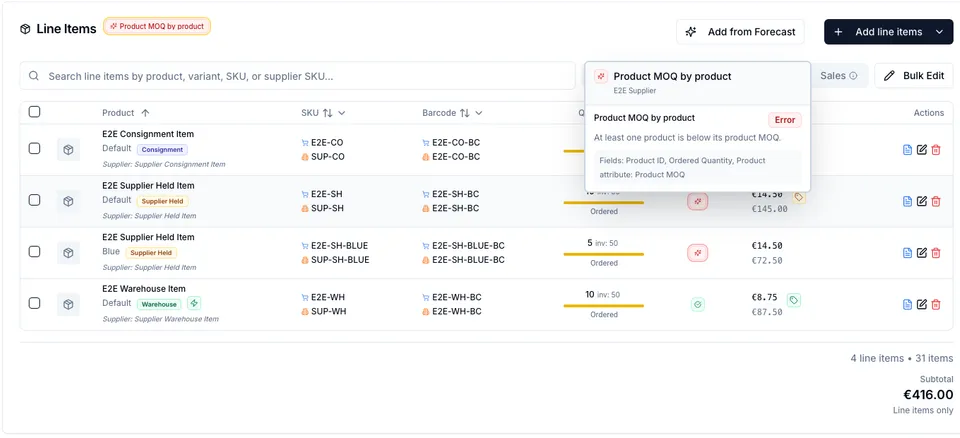
Section titled “Constraint badges”Two kinds of checks show up in the Constraints column: two built-in checks that always run — minimum order quantity and pack-size multiples — and, when you have constraint rules configured (Elevate plan), status from your saved rules:
- OK / green — the applicable checks passed.
- Warning / amber — a warning or objective rule found something to review.
- Error / red — an error-severity rule failed.
- Missing data — the rule needs a value such as Product MOQ, Unit CBM, Unit weight, Group key, or Purchase family and the value is not available for the PO context.
For a supplier whose MOQ applies to the whole product (see Lead times & MOQ), the built-in MOQ check sums ordered quantity across every variant of that product on the PO and compares it to the product’s minimum — every affected variant shows the same warning until the combined total meets it. The PO’s task list reflects this too, counting one “product MOQ issue” per under-ordered product instead of one per line. This is separate from the guided Product MOQ rule preset in Constraint Studio, which compares against a mapped Product MOQ field of your own choosing.
Hover or open the PO hints to see the rule details. The Constraint optimizer can propose additive fixes for targeted rules, but it cannot reduce/remove lines in the current Fill gaps mode.
Cost calculation
Section titled “Cost calculation”Subtotal = sum(ordered quantity × unit cost)Total = subtotal + shipping + adjustments + tax − applied creditsTotals update on every line change. The header shows subtotal, tax, shipping, applied credits, and final due. If you’ve enabled Landed Cost in settings, each line also displays its per-unit landed cost. Where a line carries a line discount, the net unit cost is what the subtotal uses.
Sub-cent precision. Unit cost fields accept more than two decimal places, which matters when a supplier quotes fractions of a cent — a component at 0.000125 per unit, say. The stored value keeps its full precision through editing, imports, bulk updates, and cost sync. Tables, dialogs, and the activity log display a unit cost to at most four decimal places, so 12.345678 reads as 12.3457 while 12.50 is unchanged; a cost too small to show at four decimals is widened until its first significant digit appears rather than rounding to zero. Opening any cost editor shows and saves the full stored number, and line totals, the financial summary, PDFs, exports, payments, and accounting all use the currency’s normal number of decimals.
To push a PO’s costs out to Shopify or to the supplier’s catalog, see Preferences → Update Unit Cost.
Currency
Section titled “Currency”A PO has one currency for its line items, inherited from the supplier at creation. Mixing currencies on a single PO’s lines isn’t supported. Payments, however, can be recorded in any currency and are converted with a per-payment exchange rate — see Payments → Currency.
See also
Section titled “See also”- Delivery schedules — splitting a line into several dated deliveries.
- Line-item column views — choosing columns, saving views, and the cost basis behind the margin columns.
- Editing retail prices — the price columns write to Shopify immediately.
- Adding line items — the picker, imports, custom items, and the raw-materials split.
- Receiving stock — how the fulfillment mode determines what happens to inventory on receive.
- Supplier Stock Releases — what to do with stock from “Hold at supplier” lines after the PO is received.
- Lifecycle & statuses — what’s editable when.
- Constraint optimizer — the rule engine that drives the badges.
- Constraint Studio — configuring rules and field bindings.
- Settings — configuring snapshot and write-back metafields.