
Constraint optimizer
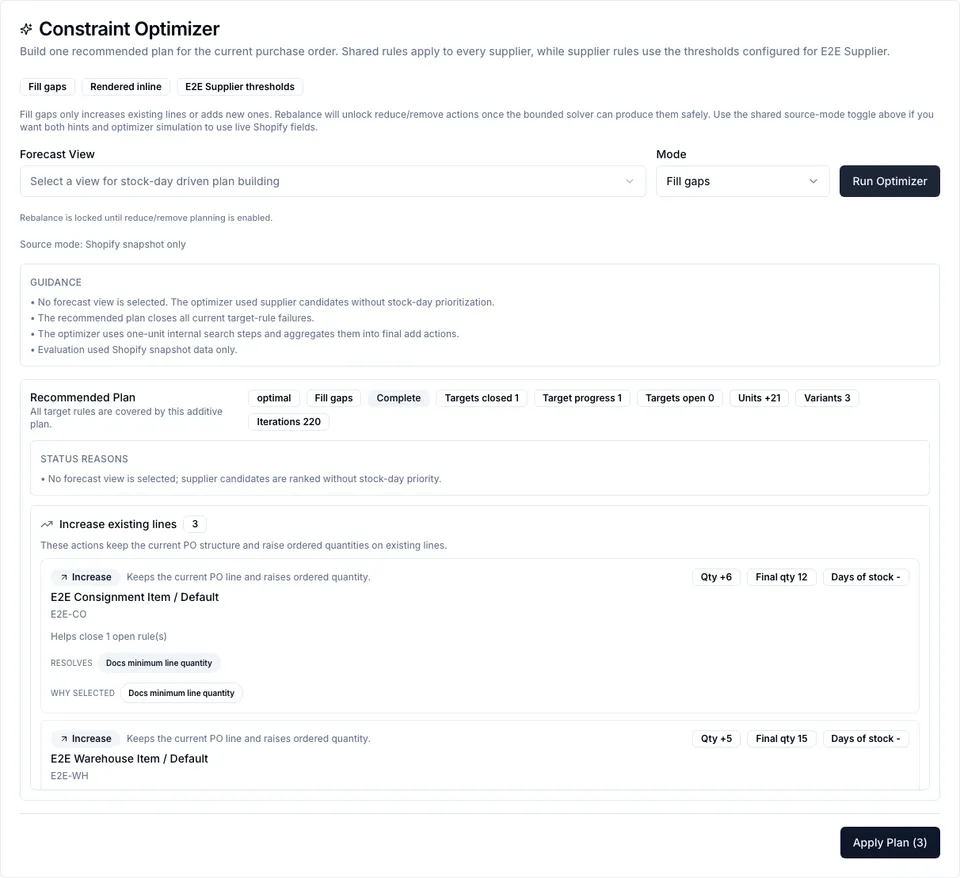
The constraint optimizerConstraint optimizerA PO detail tool that builds a proposed additive plan from configured constraint rules. In Fill gaps mode, it can increase existing lines or add eligible variants; you confirm before anything is applied. Elevate-plan feature. Read more → checks a purchase order against configured constraint rulesConstraint ruleA purchase-order rule configured in Constraint Studio that influences PO hints, optimizer targets, or objective scoring. Read more → and proposes a plan. Nothing changes until you review the plan and confirm apply.
On this page
Section titled “On this page”- What the optimizer can change
- Rule behavior
- Modes
- Forecast view
- Statuses and reasons
- Apply flow
- Limits and missing data
- Sync to Shopify
- See also
What the optimizer can change
Section titled “What the optimizer can change”The active mode is Fill gaps. It can:
- Increase an existing PO line.
- Add an eligible supplier variant as a new PO line.
It cannot currently:
- Reduce a line.
- Remove a line.
- Intentionally make a hard target rule worse.
- Apply a plan without your confirmation.
Rule behavior
Section titled “Rule behavior”Constraint Studio rules can be optimizer targets or warning-only rules.
- Optimizer target on: the optimizer tries to satisfy the rule and treats caps/limits as hard boundaries for additive plans.
- Optimizer target off: the rule still appears as a PO hint, but the optimizer does not target it directly.
- Objective outputs: some rules, such as fill capacity blocks, add ranking scores so a feasible plan is ordered toward a better business outcome.
- Severity: controls whether PO hints look like Info, Warning, or Error. Severity is not the same as optimizer hardness.
Hard target constraints are not knowingly violated by the optimizer. Soft warnings and objectives can remain open and are reported in the plan reasons.
| Mode | Availability | Behavior |
|---|---|---|
| Fill gaps | Active | Adds new lines or increases existing lines. |
| Rebalance | Locked | Reserved for future reduce/remove plans. UI and API do not allow it yet. |
Forecast view
Section titled “Forecast view”A Forecast View can be selected before running the optimizer. When a view is selected, the optimizer can use stock-day context for ranking. If no view is selected, the run can still proceed, but candidates are ranked without stock-day prioritization and the guidance explains that.
If loading the Forecast View fails, the dialog shows guidance and still lets you run with the available supplier candidates.
Statuses and reasons
Section titled “Statuses and reasons”| Status | Meaning |
|---|---|
optimal | The bounded search found a complete plan for the targeted rules it can solve. |
feasible | The plan is valid and useful, but some objective or remaining rule reasons may remain. |
infeasible | Rules conflict, required data is missing, or Fill gaps cannot solve the current violation. |
time_limit | The bounded search stopped before finishing every branch. |
model_too_large | The candidate pool is too large for the configured safety limits. Narrow the scope and retry. |
The plan can include:
- Guidance - setup notes, missing view context, or source-mode notes.
- Status reasons - why this status was returned.
- Remaining rule reasons - target gaps that remain open.
- Why selected - why each recommended action was chosen.
Apply flow
Section titled “Apply flow”- Open a Draft or Sent PO.
- Click Optimize.
- Run Fill gaps.
- Review actions, final quantities, reasons, and added variants.
- Click Apply Plan.
- Confirm the summary.
Apply is one server-side request. Logistified rechecks the baseline, validates the target PO status and supplier/variant eligibility, applies the actions, reevaluates constraints, and returns refreshed audit information. If the PO changed after the plan was created, apply is rejected as stale and you should rerun the optimizer.
Only Elevate users can apply plans. Apply is allowed only for Draft and Sent POs.
Limits and missing data
Section titled “Limits and missing data”The optimizer is bounded and deterministic so it can run safely and quickly. It returns clear reasons instead of running indefinitely.
Common limits:
- Missing MOQ, pack size, Product MOQ, CBM, weight, group, purchase family, or cost data.
- Missing or inactive supplier mapping.
- Deleted or unavailable variant.
- Candidate pool too large.
- Rules that require reduce/remove actions while only Fill gaps is available.
- Budget or max-cap rules already violated by the current PO.
Sync to Shopify
Section titled “Sync to Shopify”Apply updates the PO in Logistified. It does not send the PO, email the supplier, or push incoming inventory to Shopify by itself. Use the normal PO lifecycle action or Sync to Shopify when you want Shopify incoming inventory updated.
See also
Section titled “See also”- Constraint Studio - configure the rules used by the optimizer.
- Line items & costs - where badges and hints appear.
- Guide -> Use the constraint optimizer - step-by-step apply flow.
- Reference -> Subscription plans - Elevate plan access.
- AI / Agent access -> Operating purchase-order constraint rules - applying optimizer suggestions through a connected assistant.