
Connect claude.ai or ChatGPT
Web-chat apps — claude.ai (in the browser) and ChatGPT — connect to Logistified as a custom connector. Unlike desktop and CLI clients, they don’t accept a pasted API key; they use a secure sign-in flow that you approve with a one-time connection code generated inside Logistified.
Web-chat access is read-only by default — you choose the scope (read-only, or read & write) when you generate the connection code, and the chat is granted exactly that scope when you approve.
On this page
Section titled “On this page”- Before you start
- Step 1 — Generate your connection code
- Step 2 — Add the connector in your app
- Approving the connection
- If the code expires
- See also
Before you start
Section titled “Before you start”- AI / Agent access (it’s in open beta — enabled for every store on any plan).
- A claude.ai or ChatGPT account that supports adding a custom connector.
You don’t need to create an API key for this flow — the connection code replaces it.
Step 1 — Generate your connection code
Section titled “Step 1 — Generate your connection code”Both apps start the same way: in Logistified, generate the code you’ll paste when the app asks you to authorize.
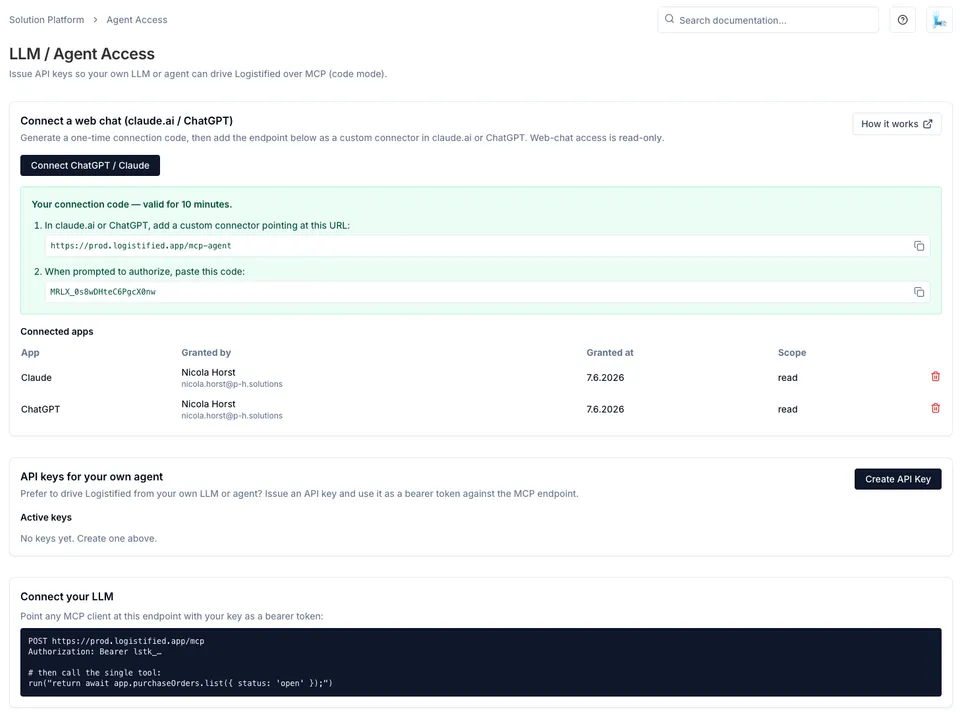
- Open P&H Cloud Platform (Beta) → LLM / Agent Access.
- In the Connect a web chat card, pick a scope — Read only (the default) or Read & write (lets the chat operate purchase orders, transfers, stock takes, returns, and reorder rules — see Operating purchase orders).
- Click Connect ChatGPT / Claude.
- Logistified shows a connector URL (it ends in
/mcp-agent) and a one-time connection code, both valid for 10 minutes. Use the copy buttons — you’ll need both in your app.
Step 2 — Add the connector in your app
Section titled “Step 2 — Add the connector in your app”The steps differ slightly per app. Follow the walkthrough for the one you’re using:
Approving the connection
Section titled “Approving the connection”The authorization screen runs in a normal browser tab (not inside the Shopify admin), which is why it asks for the connection code: the code is what proves the request came from you, signed in to your store. After you approve:
- The approval screen shows the scope the code was generated with — the button reads Approve read-only access or Approve read & write access accordingly. The connector is granted exactly that scope, scoped to your single store.
- Logistified records which app connected, who approved it, when, and the scope, in the Connected apps table on the LLM / Agent Access page.
If the code expires
Section titled “If the code expires”The connection code is single-use and expires after 10 minutes. If you take too long, or the app reports the code is invalid:
- Go back to LLM / Agent Access.
- Click Connect ChatGPT / Claude again to generate a fresh code.
- Paste the new code on the authorization screen.
See also
Section titled “See also”- Connect ChatGPT — the step-by-step ChatGPT walkthrough.
- Connect claude.ai — the step-by-step claude.ai walkthrough.
- Connect a desktop / CLI client — the API-key flow for Claude Desktop, Claude Code, and Codex.
- Managing access & security — revoking connected apps.