
Connect ChatGPT
This walks you through connecting ChatGPT to Logistified as a custom connector, so you can ask ChatGPT questions about your purchase orders, suppliers, and inventory. This walkthrough shows the default read-only flow — the scope is chosen when you generate the connection code (see Connect claude.ai or ChatGPT).
For the concept behind this flow, see Connect claude.ai or ChatGPT.
Before you start
Section titled “Before you start”- AI / Agent access (it’s in open beta — enabled for every store on any plan).
- A ChatGPT account that lets you add a custom connector (the Apps / connectors area with developer mode).
Step 1 — Generate your connection code in Logistified
Section titled “Step 1 — Generate your connection code in Logistified”In Logistified, generate the one-time code you’ll paste back into ChatGPT at the end.
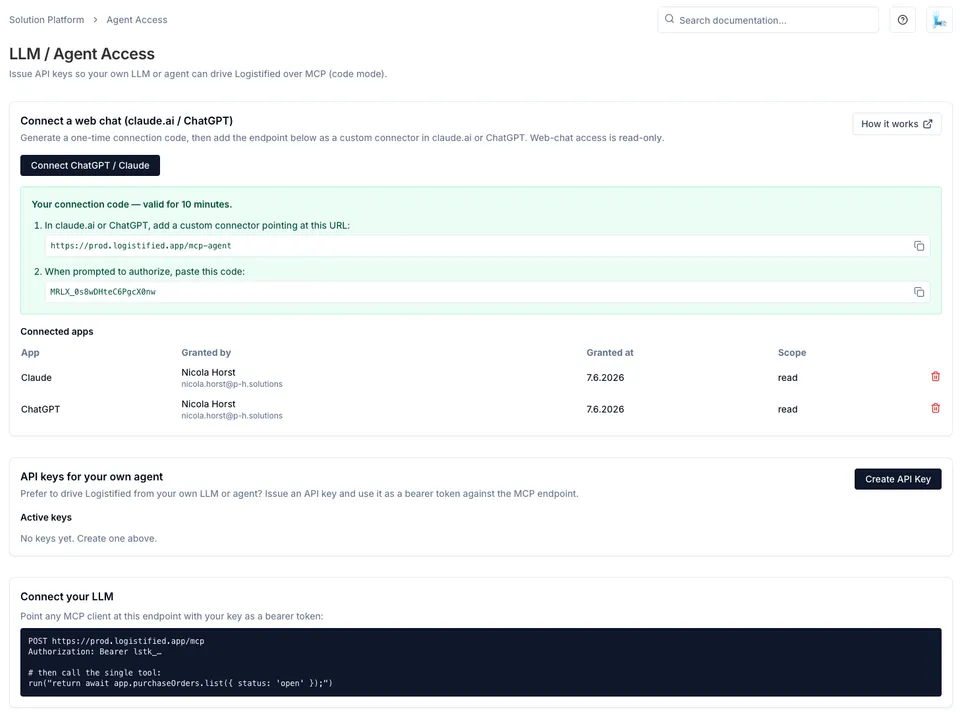
- Open P&H Cloud Platform (Beta) → LLM / Agent Access.
- In the Connect a web chat card, click Connect ChatGPT / Claude.
- Copy the connector URL (it ends in
/mcp-agent) and the one-time connection code. Both are valid for 10 minutes.
Step 2 — Enable developer mode in ChatGPT
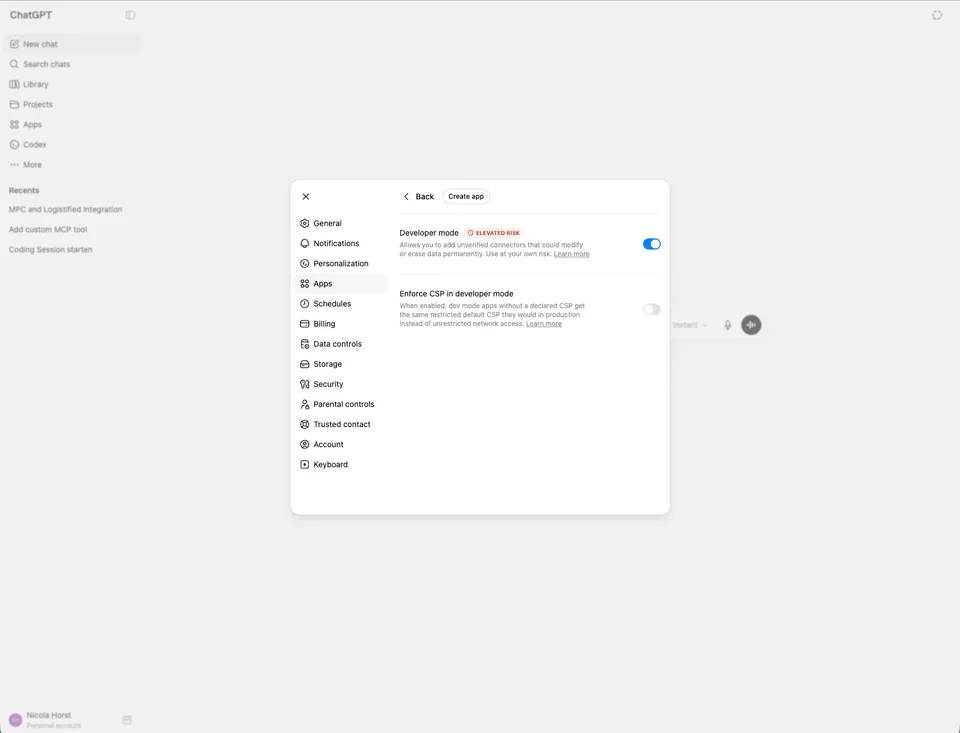
Section titled “Step 2 — Enable developer mode in ChatGPT”Custom connectors live behind ChatGPT’s developer mode.
- In ChatGPT, open Settings → Apps.
- Open the Advanced section.
- Turn Developer mode on.
Step 3 — Create the Logistified app
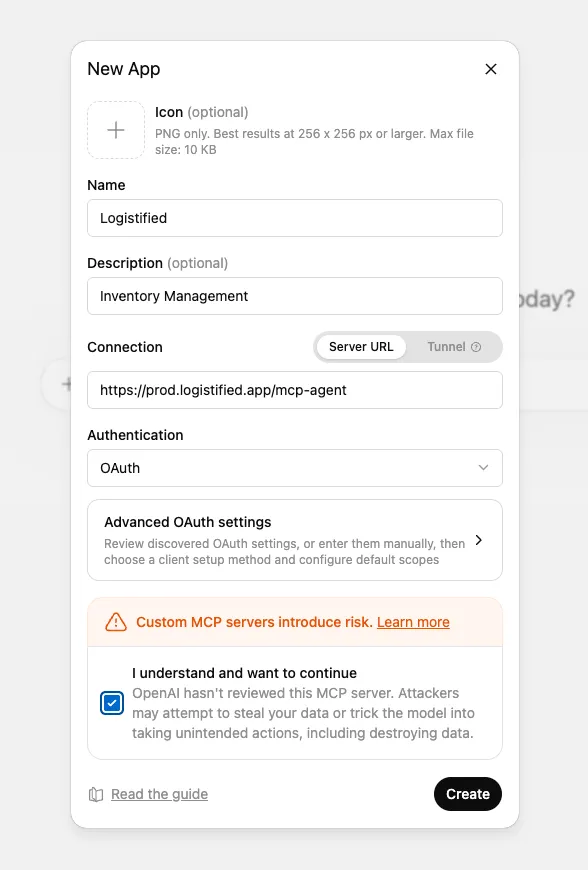
Section titled “Step 3 — Create the Logistified app”- Still under Settings → Apps, click Create app.
- Fill in the form:
- Name:
Logistified - Description (optional):
Inventory Management - Connection: choose Server URL and paste the
/mcp-agentURL from Step 1 —https://prod.logistified.app/mcp-agent. - Authentication: OAuth.
- Name:
- Tick I understand and want to continue, then click Create.
Step 4 — Sign in with Logistified
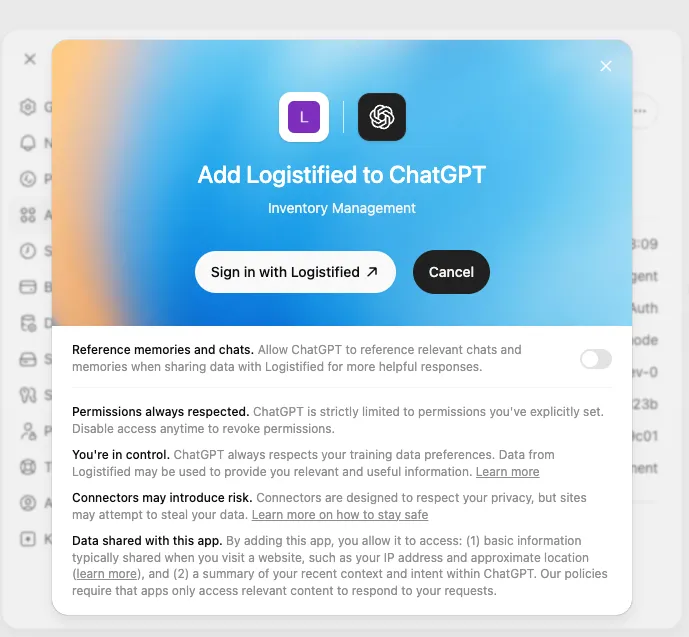
Section titled “Step 4 — Sign in with Logistified”After creating the app, ChatGPT prompts you to authorize it.
- On the Add Logistified to ChatGPT screen, click Sign in with Logistified.
Step 5 — Approve read-only access
Section titled “Step 5 — Approve read-only access”A browser tab opens on Logistified’s Connect to Logistified screen.
- Paste the connection code you copied in Step 1.
- Click Approve read-only access.
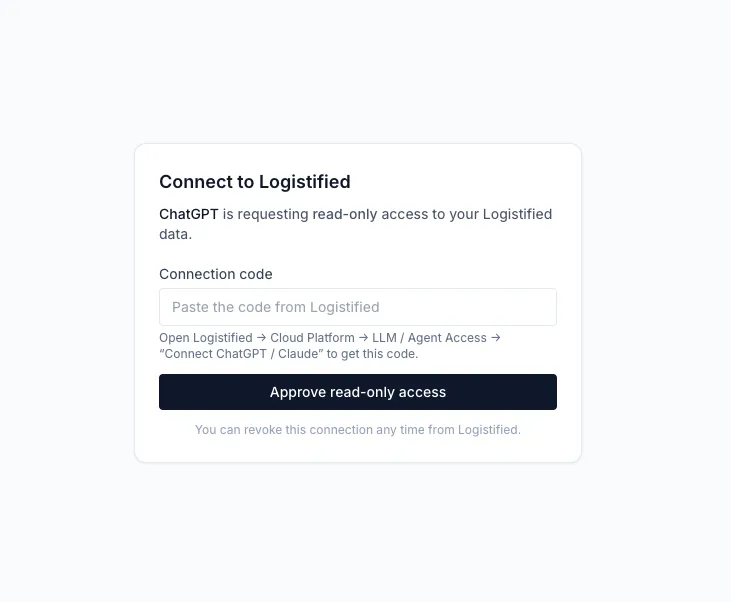
Once approved, you’re back in ChatGPT and connected. The connector also shows up in the Connected apps table on the LLM / Agent Access page in Logistified.
Try it out
Section titled “Try it out”Ask ChatGPT something in plain language, such as “List my open purchase orders.” It reads the answer live from your store.
See also
Section titled “See also”- Connect claude.ai or ChatGPT — the shared overview of this flow.
- Connect claude.ai — the same flow for claude.ai.
- Managing access & security — revoking connected apps.