
The Orders tab
The Supply Orders hub has an Orders tab that lists your Shopify customer orders. It’s the demand-side view of the section: find the orders you need to buy, move, or return stock for, and start the matching supply order straight from them.
On this page
Section titled “On this page”- What the tab lists
- Searching
- Filters
- Filtering by tag (Include / Exclude)
- Save Filters
- Creating orders from a selection
- From the Shopify admin
- See also
What the tab lists
Section titled “What the tab lists”Open Supply Orders and switch from Continue Where You Left Off to Orders. Every Shopify order Logistified has synced appears here, newest first, 50 per page, with:
| Column | What it shows |
|---|---|
| Order | The Shopify order number. |
| Date | When the order was placed. |
| Status | Its fulfillment state, plus a cancelled or return indicator where one applies. |
| Payment | Paid, partially paid, unpaid, refunded, or partially refunded. |
| Items | How many units the order contains. |
| Total | The order total in its own currency. |
| Linked Orders | Badges for every supply order already raised from this one: PO:, TO:, RMA:. Click a badge to open it. |
Two linked badges show inline; any beyond that collapse into a +N button that lists the rest on hover. An order with nothing raised from it shows a dash.
Searching
Section titled “Searching”The search box matches the order number; type 1042 or #1042. It doesn’t search customers or products; for those, use the filters below or Shopify’s own order search.
Filters
Section titled “Filters”Each control is a multi-select: pick as many values as you like, and the list narrows to orders matching any of them.
- Payment: Paid, Partially paid, Unpaid, Refunded, Partially refunded.
- Fulfillment: Fulfilled, Partially fulfilled, Unfulfilled.
- State: Active or Cancelled, plus the return states: No return, Unreturned, Return requested, Return in progress, Inspection complete, Returned, Return failed.
- Linked: Has Purchase Order, Has Return Order, Has Transfer Order, or No linked orders. Handy for “which orders have I not ordered stock for yet?”
- Tags: your store’s own order tags, with an include / exclude switch. See below.
- From / To: an order-date range. Either bound works on its own, and the small × on the button clears just that date.
Clear all appears as soon as anything is active and resets the search and every filter in one click.
Filtering by tag (Include / Exclude)
Section titled “Filtering by tag (Include / Exclude)”The Tags picker lists the order tags in use in your store and searches as you type. Above the list is a two-way switch:
- Include (the default): show only orders carrying at least one of the tags you picked.
- Exclude: hide orders carrying any of them. The picker’s footer says so explicitly: “Hides orders carrying any selected tag.” Untagged orders are still shown; excluding a tag removes only the orders that have it.
The mode does nothing until at least one tag is selected. While Exclude is active, the closed picker reads Not in front of the selected tags, so it’s obvious from the toolbar which way round the filter is.
Save Filters
Section titled “Save Filters”Save Filters stores the current state of this toolbar (the search term, all five pickers, the tag mode, and both dates) as your personal default for the Orders tab. Next time you open it, the tab comes back the way you left it.
To remove the default, press Clear all and then Save Filters again: saving an empty toolbar is what clears it.
Creating orders from a selection
Section titled “Creating orders from a selection”Tick the checkbox on one or more rows and use the Actions menu at the right of the toolbar:
- Create PO from selected orders: opens the sales-orders purchase order wizard with those orders already picked, so you can aggregate their items onto a new PO, an existing Draft PO, or a split across suppliers.
- Create TO from selected orders: opens the equivalent transfer order flow, for covering the demand from another one of your locations.
Every row also has its own actions menu for working with a single order: Create PO from Order, Create TO from Order, and (on the Elevate plan) Create RMA from Order, which starts a return order from the items on it.
From the Shopify admin
Section titled “From the Shopify admin”You can start a purchase order straight from your Shopify admin, without opening Logistified first: from one order’s page, or from several orders on the orders list.
One order, from its page
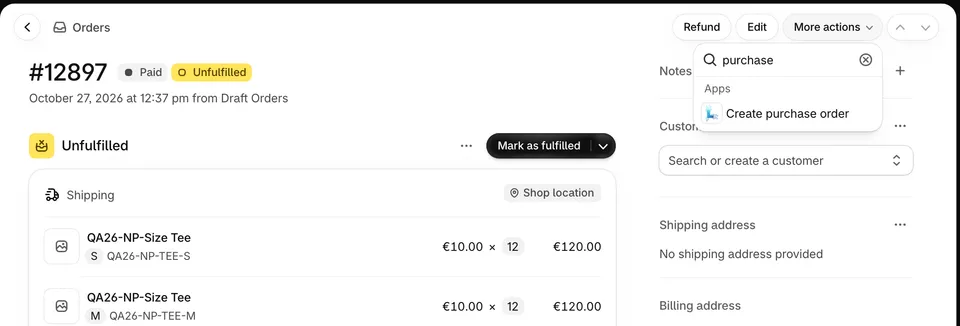
Section titled “One order, from its page”On the order’s page in your Shopify admin, open More actions and choose Create purchase order.
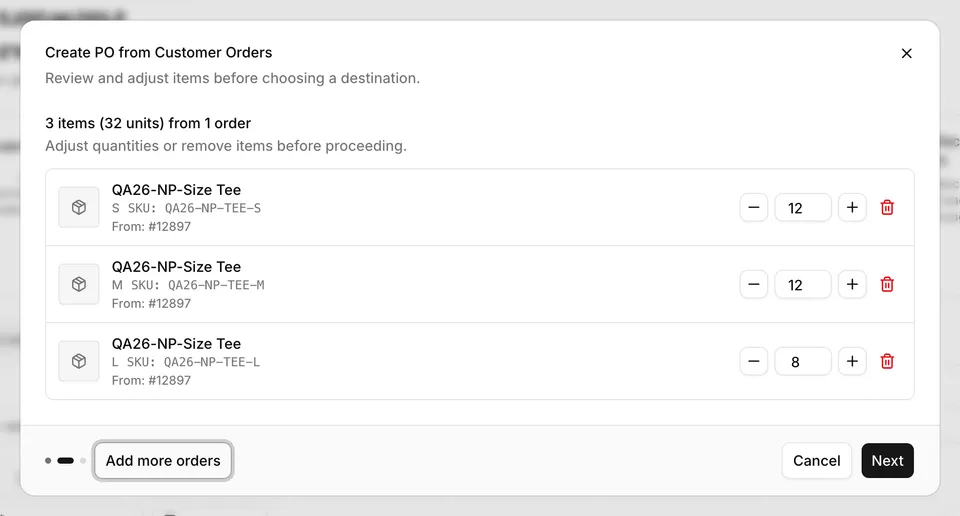
Logistified opens on this Orders tab with the Create PO from Customer Orders window already open and filled with that order’s items. It’s the same sales-orders wizard that Create PO from Order opens. From there:
- Check the items, adjust quantities or remove the ones you don’t need, then press Next.
- Choose where the items go: Dropship, to have the supplier ship straight to your customer, or one of your locations. Then pick the supplier.
- Create the purchase order.
Several orders, from the orders list
Section titled “Several orders, from the orders list”On your Shopify admin’s Orders list, tick the orders you want, open the … menu in the bar that appears above the list, and choose Create purchase order under Apps.
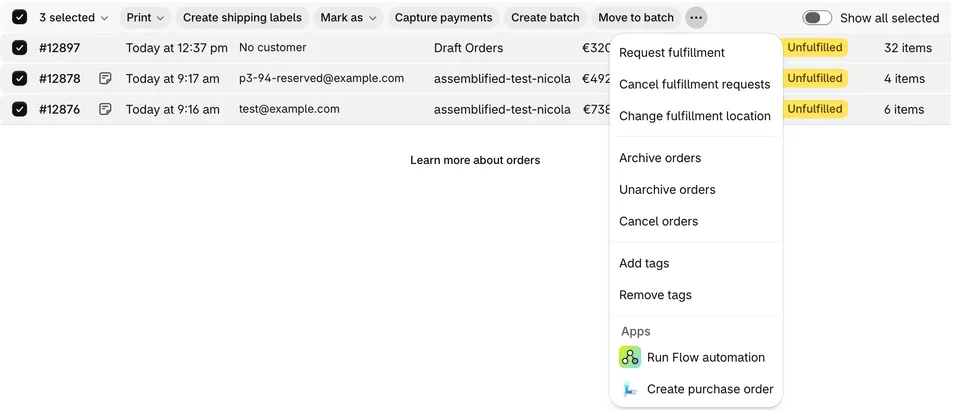
The same wizard opens with every selected order’s items in the cart. An item that several of the orders contain becomes one cart row with the quantities added up, and the row shows which orders it came from. Choosing Dropship still creates one purchase order per order, each shipped to that order’s customer; choosing a location creates one purchase order for all of them.
A few things to know:
- The order hasn’t reached Logistified yet. A brand-new order usually arrives within a minute. If you click before it has, the wizard opens empty and a message says the order isn’t in Logistified yet. Wait a moment, then use Add more orders to find it by its number. Orders older than the years of order history you chose during onboarding can’t be used.
- Logistified can’t tell which order you clicked. Now and then Shopify opens Logistified without naming the order, or Logistified can’t look it up. The wizard then opens empty with a message; use Add more orders to pick the order.
- Up to 50 orders at a time. That’s one page of the Shopify orders list. If more arrive, the first 50 are added and a message says how many were left out; add the rest with Add more orders.
- Some of the selected orders aren’t in Logistified yet. The wizard opens with the ones that are, and a message says how many are missing.
- It opens once. Closing the wizard, reloading the page or going back doesn’t open it again. Start again from the Shopify order if you need to.
See also
Section titled “See also”- Creating a PO: the wizard these actions open, and every other way to start a purchase order.
- Transfer orders → Creating: the transfer-order side of the same flow.
- Search, filters & saved views: the shop-wide preset mechanism used on the supply order lists themselves.