
Update lines from a file
Your supplier or freight forwarder sends a packing list. It covers four purchase orders from three suppliers, all in one container, and it has a new delivery date for almost every line plus the container’s tracking number. Typing that in by hand means opening four orders and editing dozens of dates.
Update lines from CSV/XLSX takes that spreadsheet as-is. Each row says “on this PO, for this SKU, set these values”, and because every row names its own purchase order, one file can touch as many orders as you like. You don’t select anything on the list first.
On this page
Section titled “On this page”- When to use it
- Opening it
- The columns
- Blank means unchanged
- Reviewing before anything is written
- Fields your order’s status won’t accept
- Lines with split delivery dates
- Shipping date, tracking and carrier
- Running the update
- Downloading the results
- What updates automatically
- See also
When to use it
Section titled “When to use it”- A consolidated shipment. Several POs, one container, one packing list with dates and a tracking number.
- A supplier’s confirmation spreadsheet. They reply with revised delivery dates per SKU across the orders you sent them.
- A freight update. Ship date, tracking number, carrier and an estimated arrival, for a batch of orders at once.
If you only need to change one or two lines, editing them on the order page is faster.
Opening it
Section titled “Opening it”Go to Supply Orders → Purchase Orders and click Create Purchase Order → Update lines from CSV/XLSX. It sits in the same group as the two import options, and (unlike the Actions menu items) it doesn’t care whether any rows are selected.
Pick your file, and Logistified maps the columns for you. If a column was matched to the wrong field, Change mapping in the review step lets you fix it without re-uploading. Download a starter template from the same screen if you’d rather begin from Logistified’s own column names.
The columns
Section titled “The columns”Only PO number and one of SKU / Barcode are required. Everything else is optional, and a column you leave out of the file simply doesn’t get touched.
| Column | Applies to | What it does |
|---|---|---|
| PO number | the order | Required. Matched against your existing PO numbers, ignoring upper/lower case. |
| SKU or Barcode | the line | At least one per row. SKU is matched against the product’s SKU and then the supplier SKU; Barcode against the barcode and then the supplier barcode. |
| Expected delivery date | the line | The line’s expected delivery date. |
| Requested delivery date | the line | The line’s requested delivery date. |
| Quantity ordered | the line | Any open order, including Sent, receiving, On Hold, and Disputed. Must be a whole number of 0 or more. |
| Unit cost | the line | Any open order, including Sent, receiving, On Hold, and Disputed. Must be 0 or more. |
| Shipping date | the order | The order’s own Shipping Date. |
| Tracking number, Carrier, Shipped at, Estimated arrival | the order | The order’s shipment. Carrier is matched against your configured carriers by name or by code. |
A filled example: two orders, three lines, one container:
| PO number | SKU | Expected delivery date | Quantity ordered | Shipping date | Tracking number | Carrier |
|---|---|---|---|---|---|---|
| PO-1041 | TSHIRT-BLK-M | 2026-10-14 | 2026-09-20 | 1Z999AA10123456784 | UPS | |
| PO-1041 | TSHIRT-BLK-L | 2026-10-14 | 2026-09-20 | 1Z999AA10123456784 | UPS | |
| PO-1042 | MUG-CER-350 | 2026-10-21 | 240 |
Dates are read in whatever format your file uses; the mapping step shows you which one it detected, and you can change it there. SKUs and barcodes keep their leading zeros.
Blank means unchanged
Section titled “Blank means unchanged”An empty cell leaves the current value alone. There is no way to clear a value from the file; if you need a date removed, do it on the order page.
This is what makes the file safe to re-upload. Logistified compares every value against what the order already holds and only writes the ones that actually differ, so uploading the same file twice reports No change on every order and touches nothing.
Reviewing before anything is written
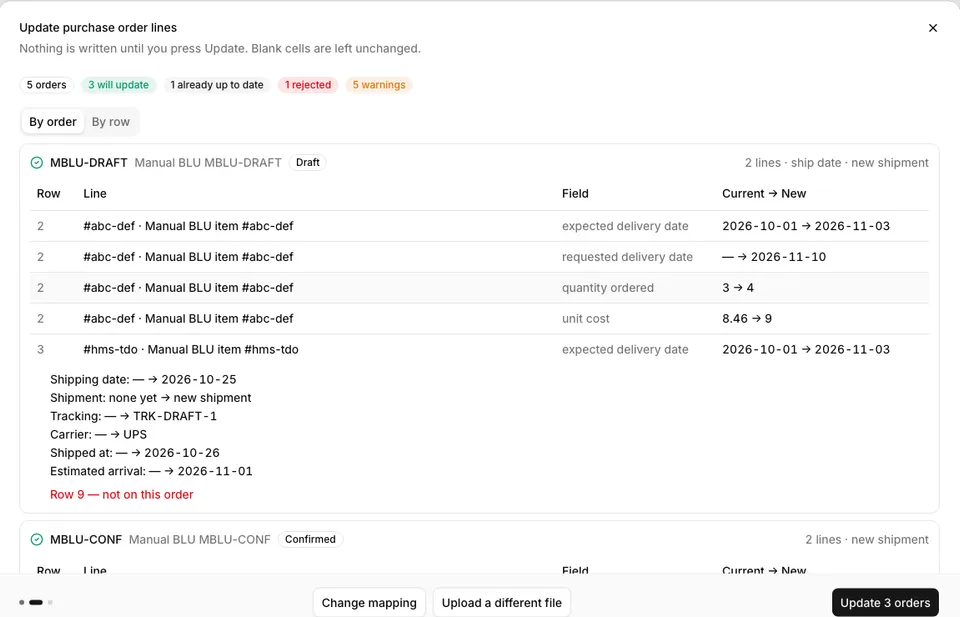
Section titled “Reviewing before anything is written”Nothing is saved until you click Update. After the file is read, Logistified looks up every PO number you named and shows a review screen, one card per order, with Current → New for each cell that will change, plus a plain-language reason for anything it can’t do:
- Order not found: no PO carries that number.
- Ambiguous (2 orders): more than one PO carries that number. Logistified never guesses which one you meant; rename one of them, or edit those lines on the order page.
- Not on this order: the SKU or barcode isn’t on that PO.
- Ambiguous line: the same SKU appears on two lines of that order. Edit those two on the order page.
- Identifiers disagree: the row’s SKU and its barcode point at two different lines.
- Duplicate row: an earlier row already claimed that line. The first one in the file wins.
Switch between the Orders and Rows views to read the same result grouped either way.
Fields your order’s status won’t accept
Section titled “Fields your order’s status won’t accept”A file usually spans orders at different stages, and Logistified doesn’t refuse the whole thing because one cell doesn’t fit. It skips that cell, tells you why, and applies the rest of the row.
| Column | Accepted while the order is… |
|---|---|
| Expected / Requested delivery date | Draft, Sent, Partially Confirmed, Confirmed, In Progress, Partially Received, Received |
| Quantity ordered, Unit cost | Draft, Sent, Partially Confirmed, Confirmed, In Progress, Partially Received, Received, On Hold, or Disputed |
| Shipping date | Anything except Received, Completed and Cancelled |
Only Completed and Cancelled orders are rejected outright; those are closed, and the file can’t reopen them. A quantity cannot be reduced below goods already received, rejected, or cancelled. If a row asks for that, Logistified reports that order as needing attention or failed; correct the quantity and upload it again.
Changing a line’s Unit cost in the file removes any discount on that line. Uploading the same cost leaves its discount in place. This changes the purchase order only; it does not update the cost in Shopify or in your supplier catalogue.
Lines with split delivery dates
Section titled “Lines with split delivery dates”If a line has been split into more than one scheduled delivery, each with its own date, the order page shows those schedule dates rather than the line’s, and a single cell in your file can’t say which delivery it means. Those cells are skipped, with the note “line has split delivery dates, edit on the order page”; the other date on the same line, and the order-level columns, still apply. A line that hasn’t been split is updated normally, and its delivery date stays in step with the date you supplied.
Shipping date, tracking and carrier
Section titled “Shipping date, tracking and carrier”The order-level columns are applied after the line changes, and they follow the shipment rules you’d expect from the Shipments card:
- The order has no shipment yet: one is created with whatever you supplied. It starts as Pending and carries no line assignments; add those on the order page if you need them.
- The order has exactly one shipment: it’s updated.
- The order has several shipments: the one whose tracking number matches the file is updated. If none matches, the shipment part is skipped with a warning and everything else still goes through.
Carrier is matched by name or by code, ignoring case, spaces and punctuation. If the name isn’t one of your configured carriers, is set to inactive, or matches two of them, the carrier is left as it was and you get a warning, but the tracking number is still saved, because that’s the part you actually need on the order.
Shipping date sets the order’s own Shipping Date. It does not recalculate a payment due date from your payment terms; that stays where it is, and you can adjust it on the order page.
Running the update
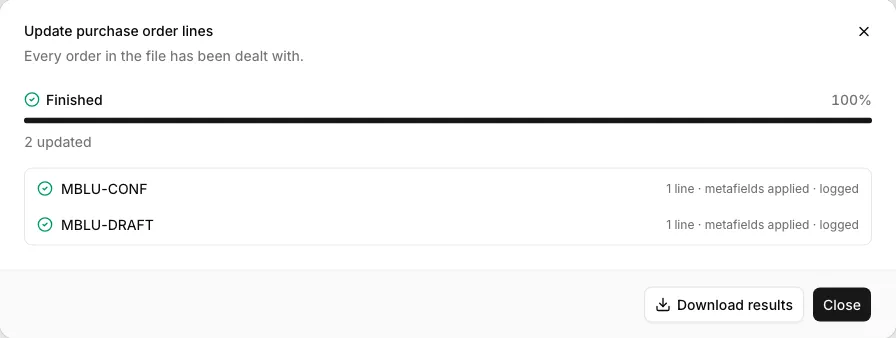
Section titled “Running the update”Click Update N orders. Logistified works through the orders one at a time, showing each result as it lands. Stop after current order finishes the order in flight and leaves the rest untouched; nothing is half-applied. You can’t close the dialog while it’s running; closing it beforehand asks you to confirm, since the review hasn’t written anything yet.
Each order finishes as one of:
| Result | Meaning |
|---|---|
| Updated | Everything you asked for landed. |
| Needs attention | Something was saved and a follow-up wasn’t: for example the shipment couldn’t be matched. The message says what. |
| Already up to date | The order already held every value in the file. |
| Rejected | The order couldn’t be found, was ambiguous, or is Completed/Cancelled. Nothing was written. |
| Failed | Something went wrong mid-write. The message names the step it stopped at. |
| Not run | You pressed Stop before this order started. |
The run keeps going past a failure; one bad order never stops the rest.
Downloading the results
Section titled “Downloading the results”The finished screen offers Download results, an XLSX with one row per row of your original file: the outcome, the fields that were applied, the fields that were skipped, and the reason. Extra rows per order cover the order-level parts, so a tracking number that didn’t land is visible rather than hidden.
Fix the rejected rows in that sheet, delete the ones that succeeded (or don’t; re-uploading a row that’s already correct reports No change and writes nothing), and upload it again.
What updates automatically
Section titled “What updates automatically”- Line-item metafields refresh on their own. Delivery dates and quantities pushed from a file feed the same Shopify writeback as editing them on the order page; you don’t need to run Update Metafields afterwards.
- Every order that changed gets an activity-log entry under your name, reading something like “Bulk line update from packing-list.xlsx: 3 lines updated (expected delivery date), shipping date set, shipment updated”. Orders reported as No change get no entry.
- Nothing else fires that wouldn’t have. The file goes through exactly the same save path as the order page, so incoming-inventory figures, product tags and accounting stay in step, and nothing extra happens because the change arrived from a spreadsheet.
See also
Section titled “See also”- Adding line items: putting new rows on one order, including its own CSV / XLSX upload.
- Creating a PO: creating orders from a file.
- Delivery schedules: splitting a line into several dated deliveries, and why a bulk file update skips those dates.
- Shipments: the shipment card these columns write to.
- Line items & costs: what each line column means.
- Settings → Carriers: the carrier names and codes the Carrier column is matched against.
- Settings → Data import & templates: saved column mappings.