
Find orders by describing them (AI search)
Instead of adding filters one at a time, type what you’re looking for (“unpaid draft or sent POs from Acme created last month”), and AI search matches your words to the filters available on that list. You see what it understood before anything changes, and the result is a set of ordinary filters you can edit or save.
On this page
Section titled “On this page”- Where you can use AI search
- Starting an AI search
- Writing a request
- What each list understands
- Reviewing the preview
- Applying, cancelling and going back
- Saving the result as a preset
- What AI search doesn’t handle yet
- What’s processed when you search
- Tips
Where you can use AI search
Section titled “Where you can use AI search”AI search is available on six lists:
On each one it works with that list’s own filters, the same ones you’d find under + Filter.
Starting an AI search
Section titled “Starting an AI search”- Click into the list’s search box. A light-blue Tab: try AI search badge appears at the end of the box.
- Press Tab, or click the badge. The box switches to AI search and reads “Describe what you’re looking for (English only)…”. Anything you had already typed comes along, so you can start typing first and switch afterwards.
- Describe what you want to see and press Enter. A preview opens under the box showing what AI search understood.


On a phone or tablet there’s no Tab key, so the box carries an AI search button instead (on a narrow screen, just a sparkle icon). Tap it to switch; in AI search mode the same spot shows Normal search (a back arrow on a narrow screen) to switch back.
Writing a request
Section titled “Writing a request”Write the way you’d ask a colleague. A request can combine several filters in one sentence:
- Status: “drafts”, “on hold”, “partially received”. Several statuses joined with “or” all apply: “draft or sent POs”.
- Names from your shop: suppliers, locations, tags, reasons, people. A partial name is enough (“Acme” for Acme Supplies), and small typos are usually fine.
- Who created it: “POs Ben Carter created”, “Anna’s drafts”.
- A date period: Today, Last 7 days, Last 30 days, Last 365 days, This month or Last month. Say which date you mean (“received this month”, “due this month”, “completed last month”), and AI search picks that date; without one, it uses the date the order was created.
- An order number, SKU or barcode: “PO-1042”, “transfers containing SKU MUG-BLU-01”. This becomes the search term rather than a filter.
What each list understands
Section titled “What each list understands”| List | Filters you can describe | Example request |
|---|---|---|
| Purchase orders | Status, supplier, destination (including Dropship and At supplier), created by, payment status, tags, and created, sent, confirmed, received, closed, expected / requested delivery or due date | ”unpaid draft or sent POs from Acme going to Berlin, created last month” |
| Transfer orders | Status, destination (including At supplier), created by, tags, and created, sent, received, completed, expected / requested delivery or due date | ”sent transfers to Hamburg that Ben Carter created last month” |
| Return orders | Status, created by, and created, submitted, approved, shipped, received by supplier, closed, expected return or due date | ”approved RMAs Anna Schmidt created last month” |
| Manufacturing orders | Status, execution (Manual or Assemblified engine), production location, created by, and created or updated date | ”in-progress automatic MOs at the Berlin warehouse created last month” |
| Stock takes | Status, location, reason, vendor (the products’ brand), created by, tags, and created, started, completed or cancelled date | ”completed year-end counts at the Berlin warehouse” |
| Stock adjustments | Status, location, reason, vendor (the products’ brand), created by, tags, and created, completed, cancelled or applied date | ”completed theft adjustments at the London fulfilment centre” |
A few list-specific notes:
- Transfer orders filter on the destination only. In “transfers from Berlin to Hamburg” the Hamburg part becomes a filter; “from Berlin” isn’t used. The destination filter takes one location, so “transfers to Hamburg or Munich” offers both as suggestions for you to pick from.
- Return orders have no supplier or location filter. To find returns for one supplier, type the supplier’s name into the normal search box.
- Manufacturing orders: the search term matches order numbers and names, so a product name won’t find an order. “Automatic” is understood as Assemblified engine.
Reviewing the preview
Section titled “Reviewing the preview”Nothing on the list changes until you click Apply. The preview shows what AI search understood, and you can adjust it first.

- Chips: one per filter, in the same wording as the filter chips on the list (for example Status: Draft, Sent or Created: Last month). Click the × on a chip to leave that filter out.
- Search: …: when you named an order number, SKU or similar, it appears as its own chip and goes into the search box on Apply.
- Suggestions: when your words could mean more than one option, a row such as Destination: lists up to three choices with dashed borders. Click one to add it (on filters that take several values) or to use it (on filters that take one). Picked suggestions become chips.
- Not sure about: …: the filters AI search couldn’t settle on. They’re left out; add them yourself with + Filter after applying.
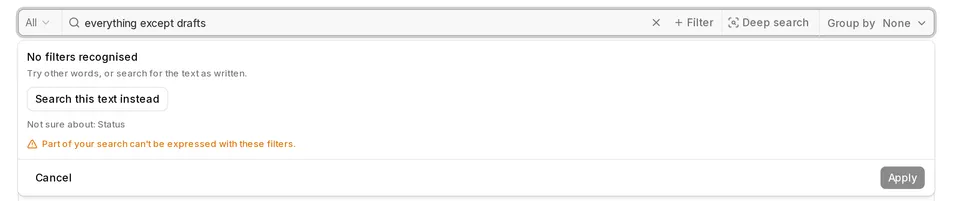
- Part of your search can’t be expressed with these filters., your request asks for something the list’s filters can’t do (see What AI search doesn’t handle yet). Whatever it could match is still offered.
- Replaces your current filters: shown when filters or a search term are already active. Apply swaps them for the preview rather than adding to them.
If none of your words matched a filter, the preview says No filters recognised. Try other words, or click Search this text instead to run your sentence as a normal search. If you remove every chip, the preview reads Nothing left to apply. and Apply is disabled.
Applying, cancelling and going back
Section titled “Applying, cancelling and going back”- Apply sets the filters (and search term) in one step and returns the box to normal search. The filters appear as chips below the toolbar like any others; click one to edit it, or its × to remove it. A date chip now shows the actual dates the period covers.
- Cancel, or Esc, closes the preview and keeps your sentence so you can reword it and press Enter again.
- Esc a second time (or with no preview open) returns to normal search. On a computer, clicking away from an empty AI search box does the same.
- Changing the sentence after a preview has appeared discards that preview; press Enter again for a new one.
Saving the result as a preset
Section titled “Saving the result as a preset”Applied filters are ordinary filters, so you can save them as a shop-wide preset with Save or Save as…; see Saving a filter set as a preset. The preset stores the filters and search term, not the sentence you typed.
What AI search doesn’t handle yet
Section titled “What AI search doesn’t handle yet”AI search works in English only for now. It also doesn’t apply these kinds of request; it shows Not sure about or the warning instead of guessing:
- Exclusions: “everything except drafts”, “POs not from Acme”. Pick the values you do want in the filter instead.
- “Or” across different filters: “drafts or anything from Acme”. (“Or” within one filter works: “draft or sent”.)
- Two date periods: “created last month and received this month”. The list filters on one date at a time.
- “Both” or “all of” several values: “tagged both urgent and samples”. A filter with several values matches any of them, not all.
- Other periods and exact dates: “yesterday”, “last year”, “between 3 and 10 February”. Only the six periods above are understood; for anything else, apply the rest and then set a custom range in the Date filter.
Words that fit several statuses, such as “open” or “pending”, may be left out or offered as suggestions. Always glance over the preview before you apply it.
What’s processed when you search
Section titled “What’s processed when you search”- Use the names you see in the filters. AI search matches against the options under + Filter, so the names your shop uses there work best.
- Name the date. “Received this month” works better than “arrived this month”. If the date ends up under Not sure about, its suggestions usually offer the date you meant.
- Short is fine. “drafts for Munich” or “Copperleaf counts at the Berlin warehouse” are complete requests.
- Too many searches in a row? If you’re asked to try again in a minute, wait briefly and press Enter again; your sentence is still there.
See also
Section titled “See also”- Purchase orders → Search, filters & saved views
- Transfer orders → Search, filters & saved views
- Return orders → Search, filters & saved views
- Manufacturing orders → The list page
- Stock takes → Finding past stock takes
- Stock adjustments → Finding past adjustments